

Make Your Applications More Attractive Using SVG Animations — Part 2
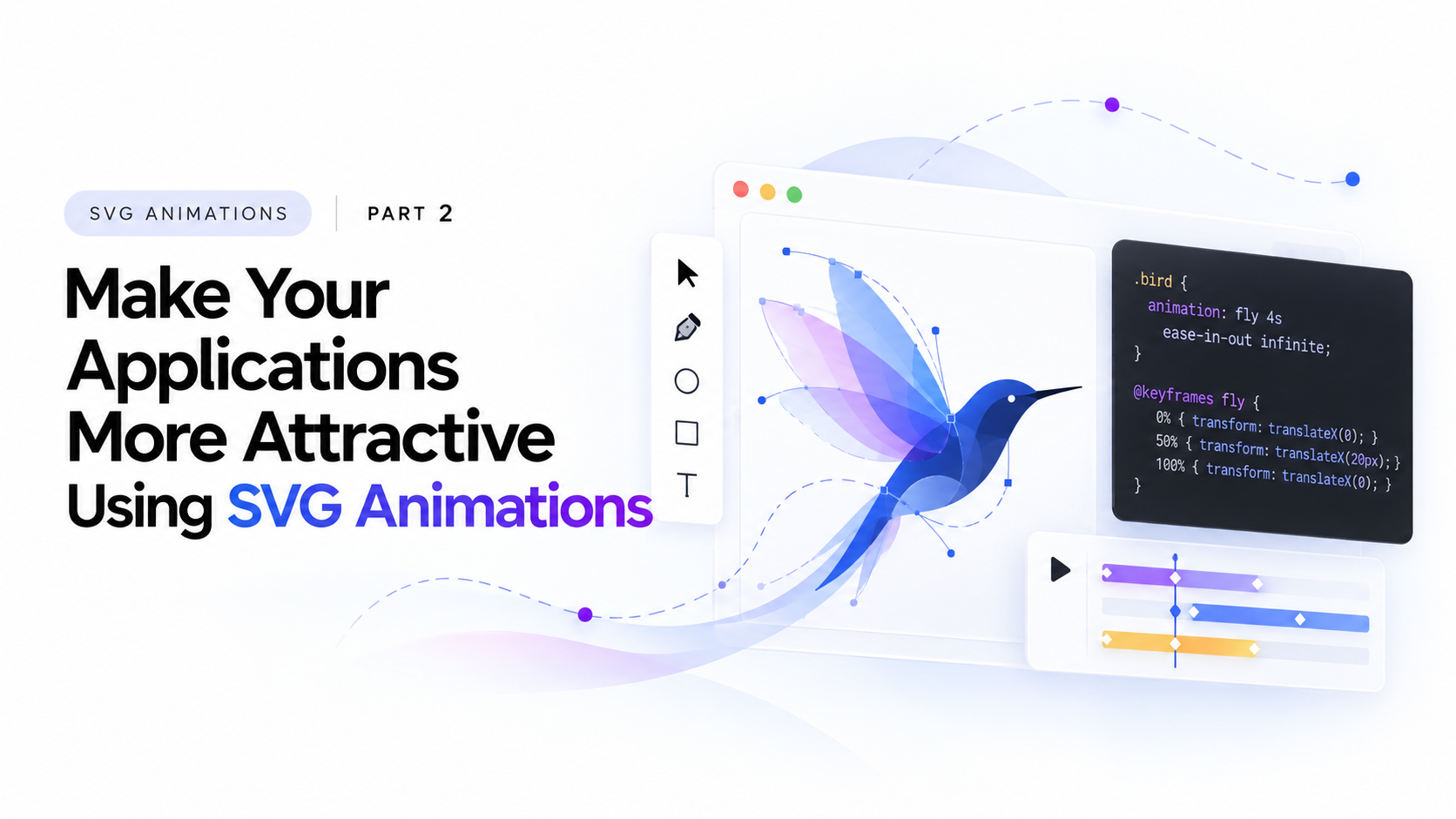
In the previous article, we explored what SVG is, how it differs from raster graphics, and why SVG animations are useful when building modern user interfaces.
In this article, let's get practical. I'll walk you through creating SVG animations in two different ways: using code and using animation software.
1. Creating SVG Animations Manually
One of the best things about SVG is that we can work directly with its underlying code. We don't always need specialized software to create animations.
Since SVG uses XML based markup to define shapes and paths, we can combine it with CSS to bring those elements to life.
Let's start with a simple example.
Step 1: Create an SVG
First, we need an SVG element to animate. For this example, let's create a simple circle.
<svg
  width="200"
  height="200"
  viewBox="0 0 200 200"
  xmlns="http://www.w3.org/2000/svg"
>
  <circle
    cx="100"
    cy="100"
    r="40"
    fill="#3498db"
    class="circle"
  />
</svg>
Here, cx and cy define the center of the circle, while r defines its radius.
The viewBox establishes the SVG's internal coordinate system, allowing the graphic to scale without losing its quality.
Step 2: Add CSS Animation
Now, let's animate the circle by changing its size and color.
.circle {
  transform-box: fill-box;
  transform-origin: center;
  animation: pulse 2s ease-in-out infinite alternate;
}

@keyframes pulse {
  from {
    transform: scale(1);
    fill: #3498db;
  }

  to {
    transform: scale(1.4);
    fill: #9b59b6;
  }
}
That's it! We now have a simple SVG animation using nothing more than CSS.
The @keyframes rule defines the animation, while infinite alternate makes it repeat in both directions.
This is just a basic example, but the same technique can be used to animate icons, illustrations, logos, and other UI elements.
Step 3: Create a Drawing Effect
One of my favorite SVG animation techniques is making a line appear as though it is being drawn.
We can achieve this using two SVG stroke properties: stroke-dasharray and stroke-dashoffset.
Consider the following SVG:
<svg
  width="200"
  height="200"
  viewBox="0 0 200 200"
  xmlns="http://www.w3.org/2000/svg"
>
  <path
    d="M 40 100 C 40 30, 160 30, 160 100
       C 160 170, 40 170, 40 100 Z"
    fill="none"
    stroke="#3498db"
    stroke-width="4"
    stroke-linecap="round"
    pathLength="100"
    class="draw-path"
  />
</svg>
Now add the following CSS:
.draw-path {
  stroke-dasharray: 100;
  stroke-dashoffset: 100;
  animation: draw 3s ease-in-out forwards;
}

@keyframes draw {
  to {
    stroke-dashoffset: 0;
  }
}
The pathLength="100" attribute lets us work with a normalized path length, so we don't have to calculate the actual length of this particular path.
Here's what happens:
stroke-dasharraydefines the dash pattern along the path.stroke-dashoffsetshifts that pattern, initially hiding the stroke.- Animating the offset back to zero reveals the line progressively.
forwardskeeps the animation in its final state.
You can use this technique to animate logos, icons, illustrations, and even hand-drawn effects.
2. Creating SVG Animations Using Software
Writing animations manually gives us a lot of control, but it can become time-consuming when working with complex illustrations.
This is where animation software can help.
There are several tools available, but the workflow is generally similar: create your SVG artwork, animate its elements, and export or integrate the result into your application.
SVGator
SVGator is a dedicated tool for creating SVG animations through a visual interface.
Instead of writing every animation rule yourself, you can select elements, configure keyframes, adjust timing, and preview the result.
This can be particularly useful when animating complex illustrations or creating sequences with multiple moving parts.
Adobe Illustrator and Inkscape
Adobe Illustrator and Inkscape are useful for creating the original SVG artwork.
You can draw shapes, organize layers, edit paths, and prepare individual elements for animation.
However, these are primarily vector graphics editors rather than complete SVG animation workflows. You may need an additional animation tool or some CSS and JavaScript to animate the exported artwork.
3. Which Approach Should You Choose?
Both approaches have their advantages, and the right choice depends on the project.
Manual animation is a good choice when:
- You want complete control over the animation.
- You need lightweight animations for UI components.
- You want to respond to hover, click, or other user interactions.
- You need animations that integrate directly with your application's code.
Animation software is a good choice when:
- You're working with detailed illustrations.
- You need multiple animation sequences and carefully timed transitions.
- You want to preview and adjust animations visually.
- You want to spend less time writing animation code from scratch.
Of course, these approaches aren't mutually exclusive. You can create an illustration in a vector editor, animate it using dedicated software, and then refine its behavior with CSS or JavaScript.
4. Final Thoughts
SVG animations are a great way to make interfaces more engaging without relying entirely on raster based animations.
The real advantage is the flexibility. You can animate a single icon with a few lines of CSS or build a detailed illustration with multiple paths, shapes, and carefully timed movements.
I personally enjoy experimenting with SVG because it allows me to combine design and code to create something interactive.
If you're a front end developer, I encourage you to start small. Try animating a button icon, drawing a logo, or bringing a simple illustration to life. Once you understand the basics, you can explore more advanced techniques.
In the end, the goal isn't to animate everything. It's to use animation where it adds meaning, feedback, or a little more personality to the user experience.
Thank you for reading!
About the author
working on the front end to build fantastic user interfaces and deliver a top notch user experience.
Comments
Join the discussionNo comments yet. Be the first to comment.


